Create Email Accounts Through the Client Area
This article explains how to create a new email account through the Turbohost Client Area.
1 — Access your services
- Log in to your Client Area.
- From the left-hand menu, click My Services.
- Then click Web Hosting.
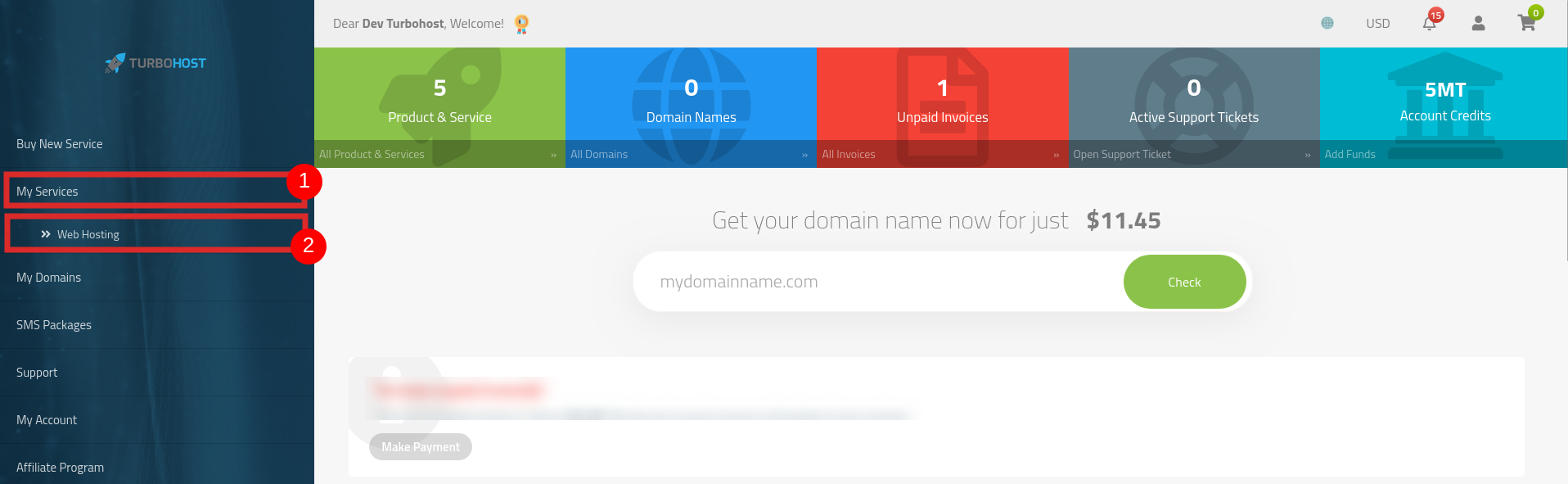
2 — Manage your hosting service
From the list of your hosting services, find the domain where you want to create the email account.
Click Manage.
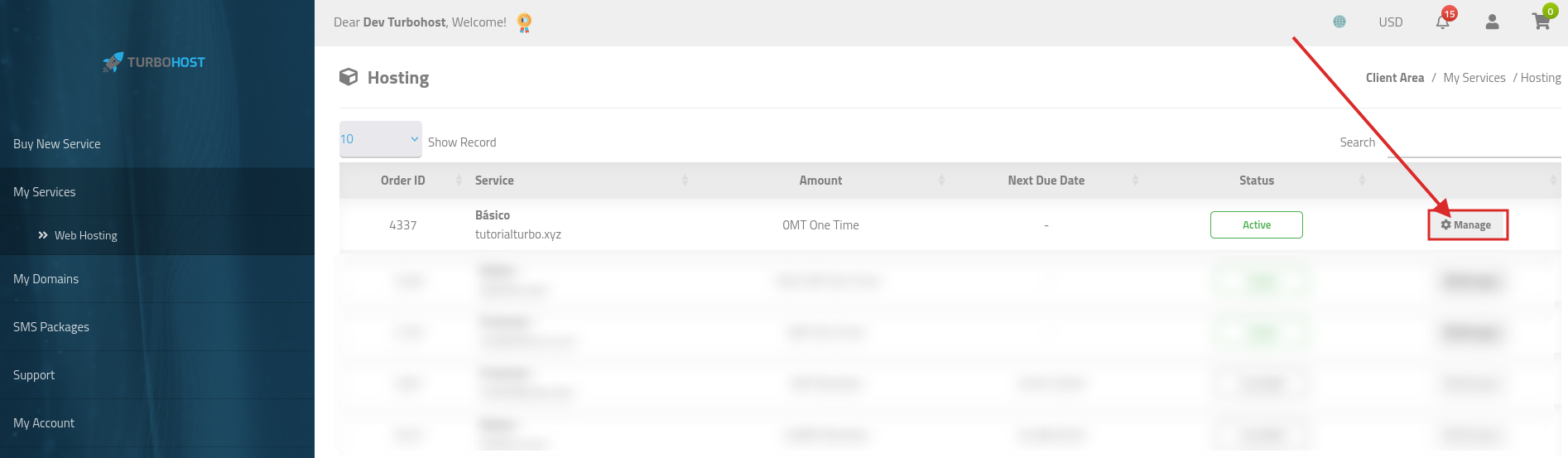
Access Email Management
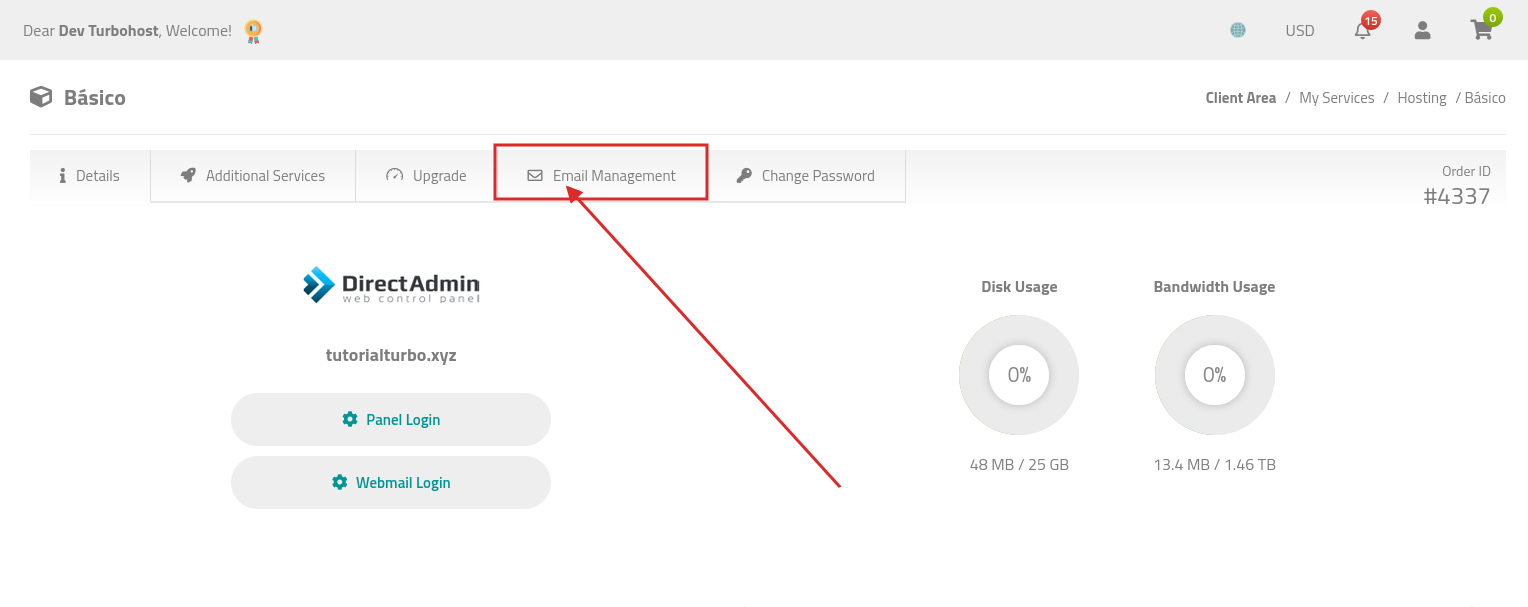
On the hosting service management page, click Email Management.
4 — Add a new email account
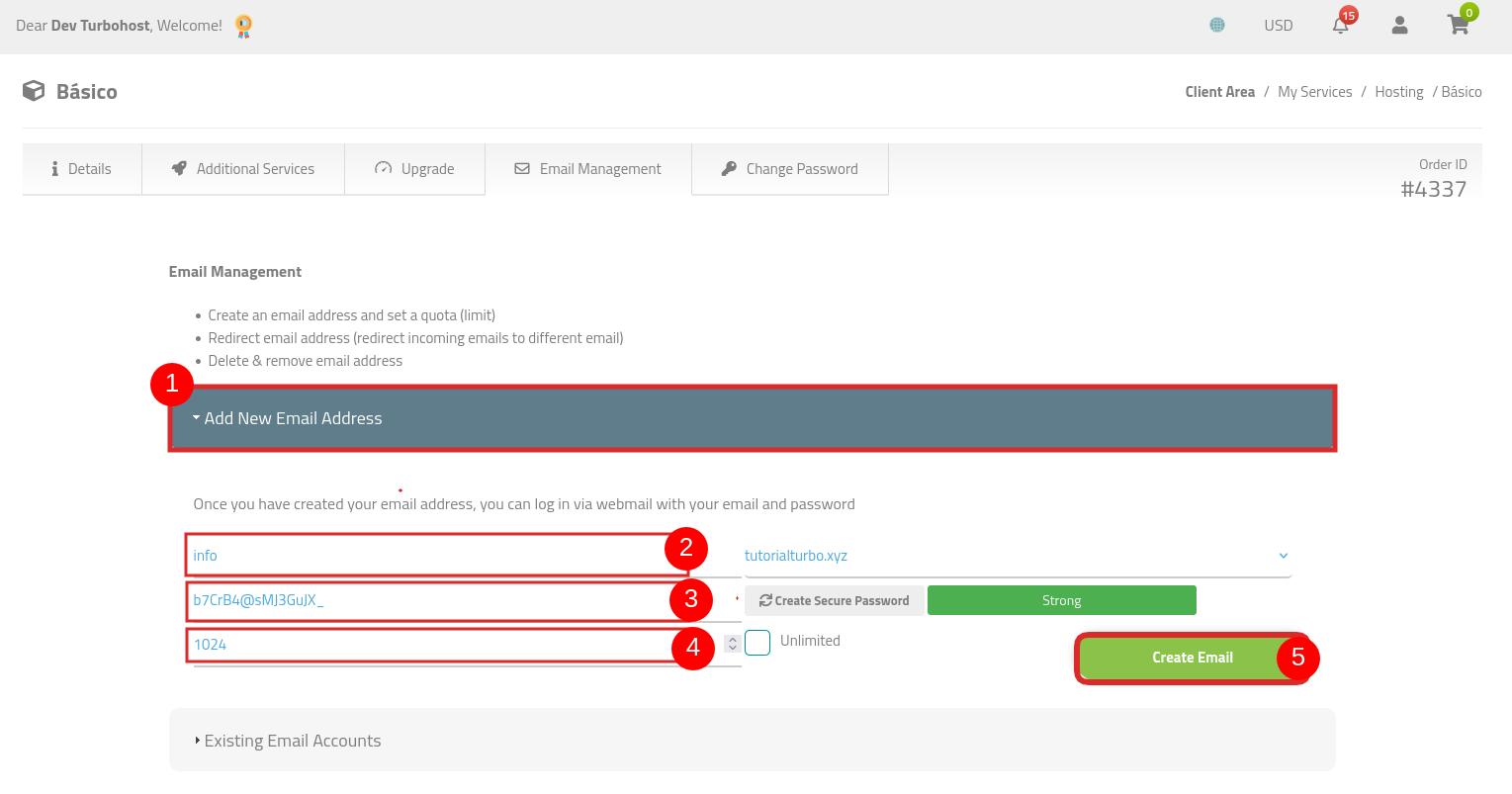
Under Email Management:
- Click Add New Email Address.
- In the first field, enter the name of the email account.
For example: info
- The domain will be displayed automatically in the next field.
- Set a password for the account or click Create Secure Password to generate a secure password.
- Set the email account quota (storage limit).
- Click Create Email to complete the process.
Once created, the email account can be used to log in to Webmail and send and receive emails.
Using yourdomain.com/webmail.
Ex: tutorialturbo.xyz/webmail
Important: Setting a quota is required when creating an email account. If no quota is specified, the system may not accept the new account.
Thank you for your feedback.
Sorry about that :( We'll work to make it better.
You voted before.
(3 times viewed / 0 people found it helpful)

 Worldwide (English)
 Mozambique (Portuguese)