If you have forgotten your Client Area password, follow the 5 steps below.
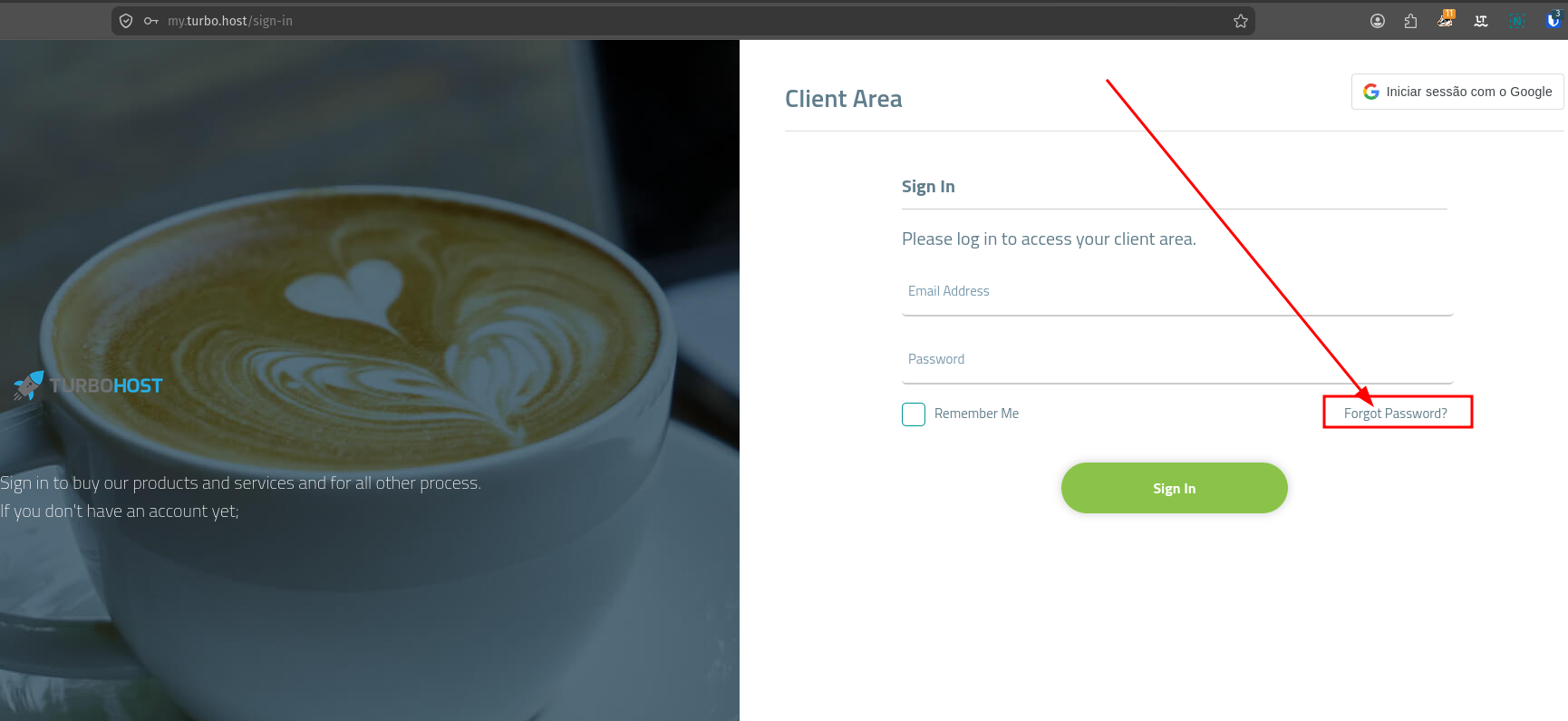
On the Client Area login page, click Forgot Password? to start the password recovery process.
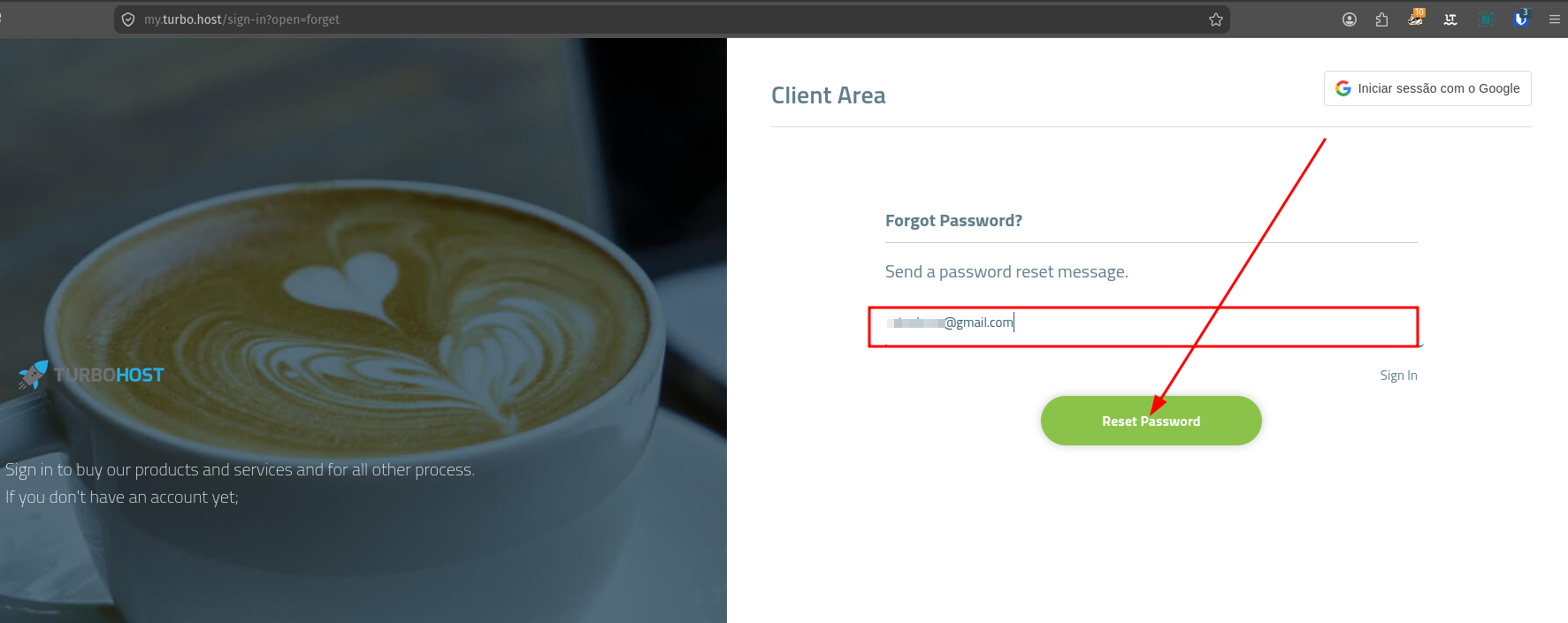
On the Forgot Password? page, enter the email address associated with your account and click Reset Password.
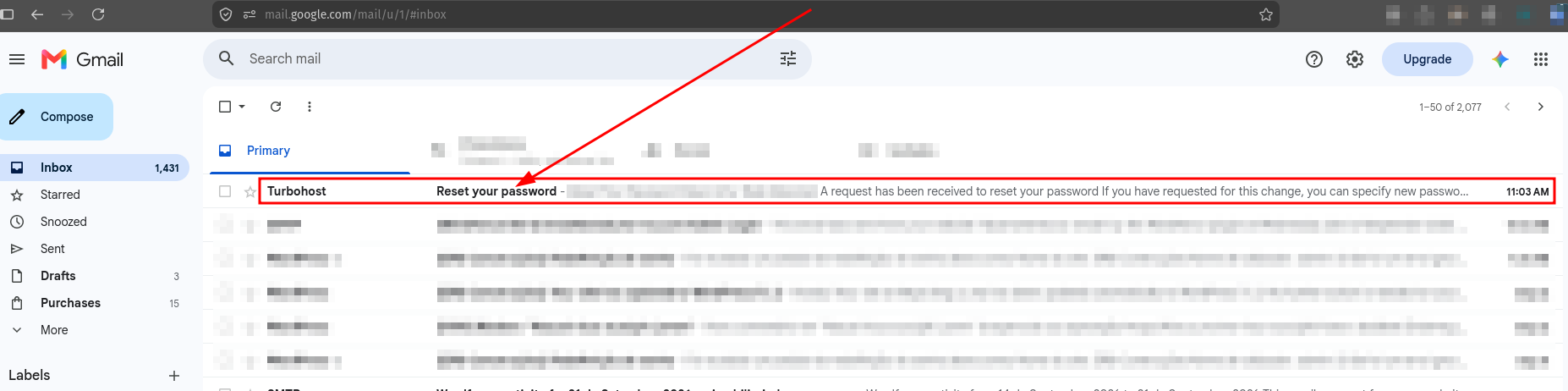
Check the inbox of the email address you entered in the previous step. Look for an email from Turbohost with the subject Reset your password.
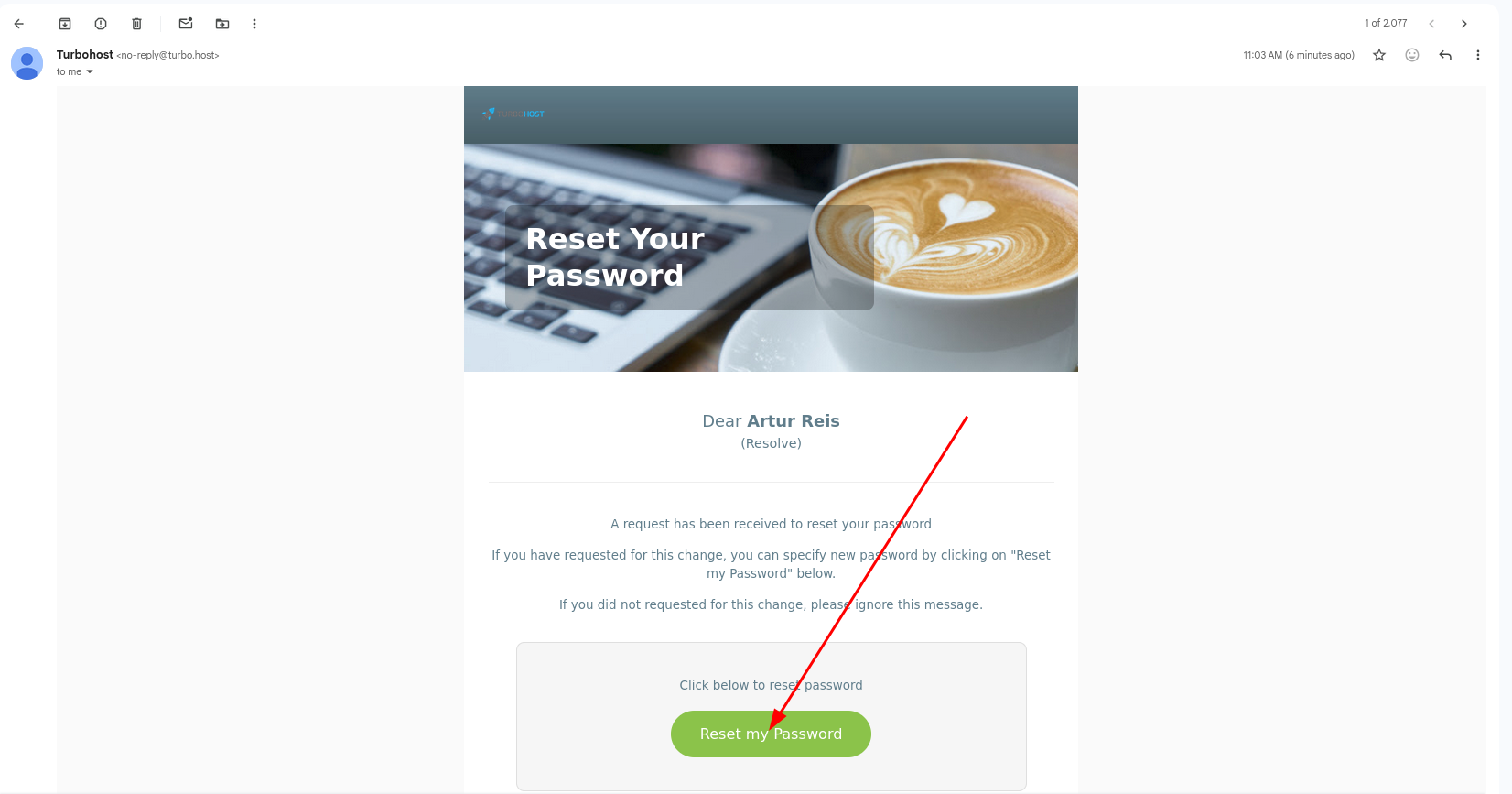
Open the email you received and click the Reset my Password button. You will be redirected to the page where you can set a new password.
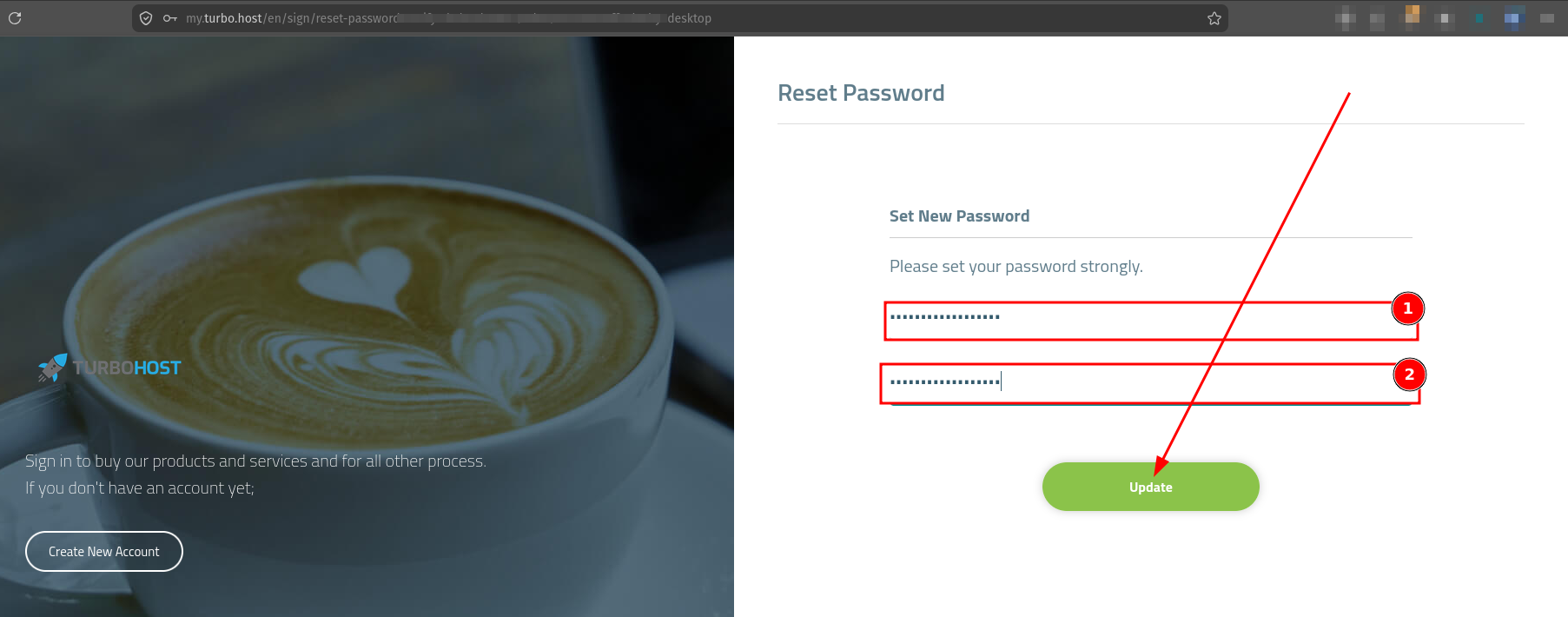
On the Reset Password page:
Your password will be updated, and you can use it to sign in to the Client Area.

 Worldwide (English)
 Mozambique (Portuguese)