Follow the steps below to change the password for an email account in the DirectAdmin panel:
Step 1️⃣ — Access email management
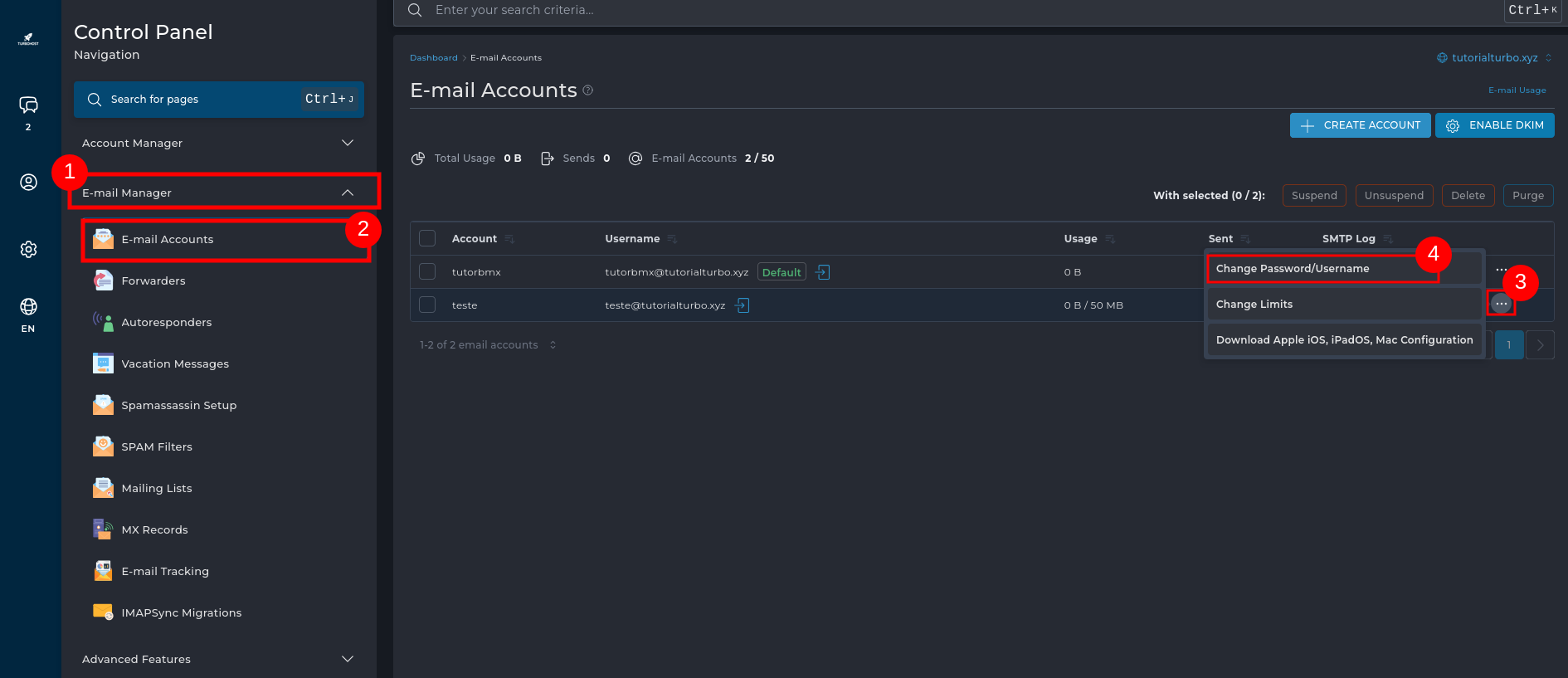
1 - In the side menu, click on “Email Manager.”
2 - Then select “Email Accounts.”
3 - Next to the desired email account, click on the three dots (...).
4 - Select the “Change Password/Username” option.
Step 2️⃣ — Set a new password
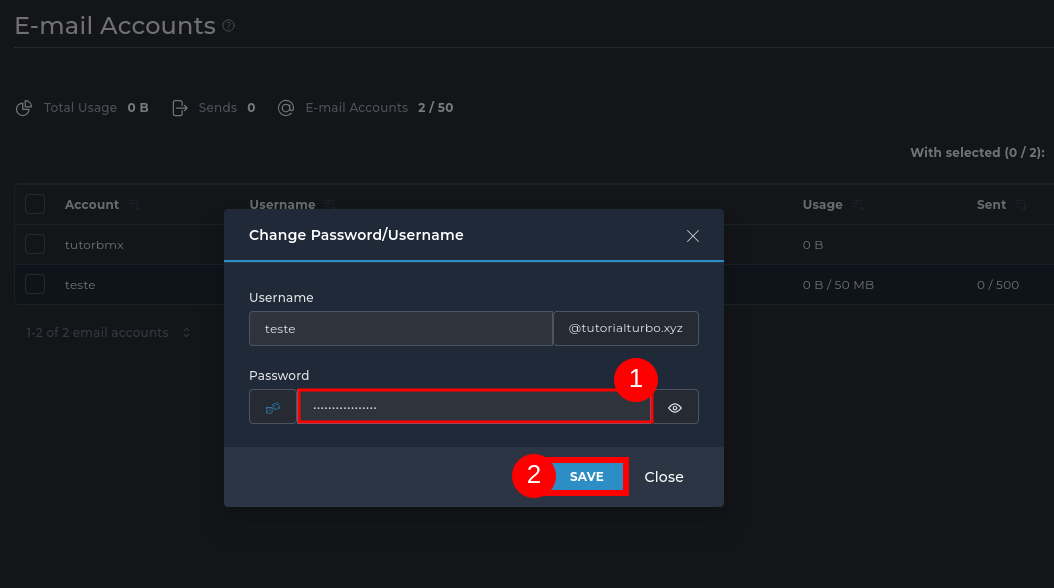
1 - In the Password field, enter the new password you want
2 - Click on “SAVE” to save the changes
✅ Tip: Always choose a secure password, mixing uppercase letters, lowercase letters, numbers, and symbols.

 Worldwide (English)
 Mozambique (Portuguese)