Adding a new domain to your hosting plan allows you to manage multiple sites from a single account. Follow the steps below to carry out this process correctly:
1: Access the Account Manager
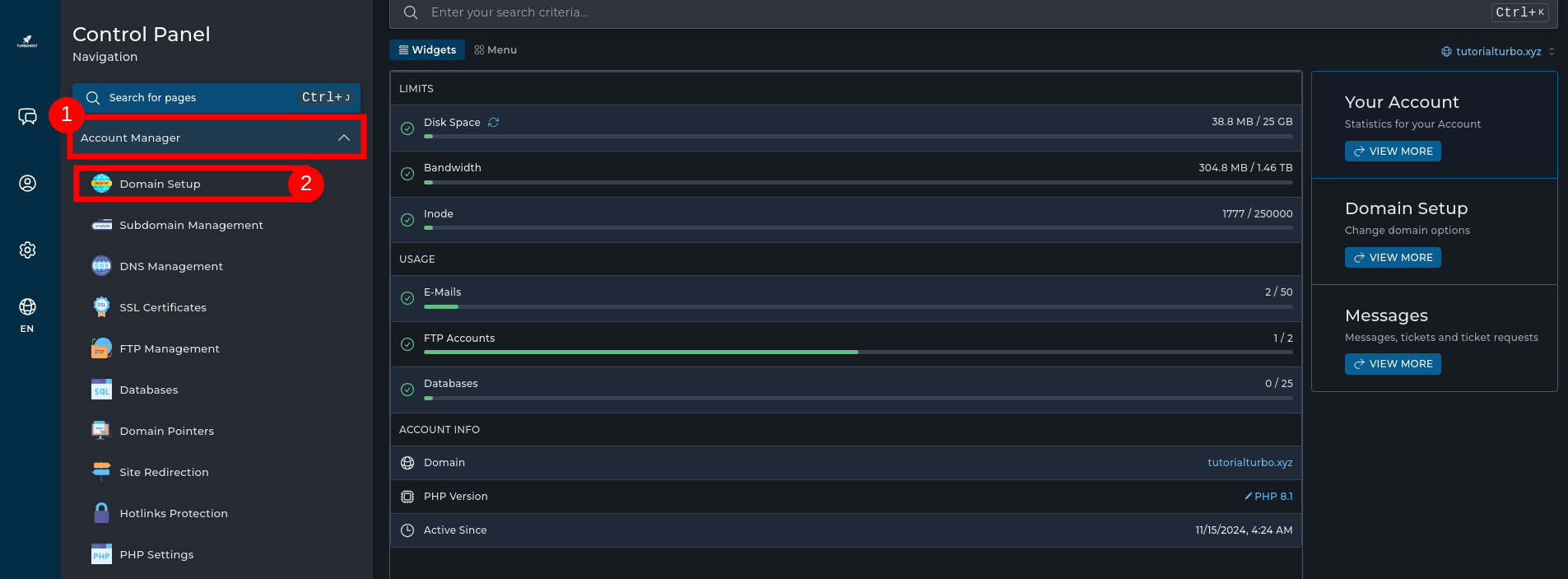
After logging in to the DirectAdmin Panel, find and click on the “Account Manager” menu in the side panel.
Then select the “Domain Setup” option.
2: Add New Domain
Click on the “Add New” button, usually located at the top right of the screen.
A screen will open for you to enter the details of the new domain.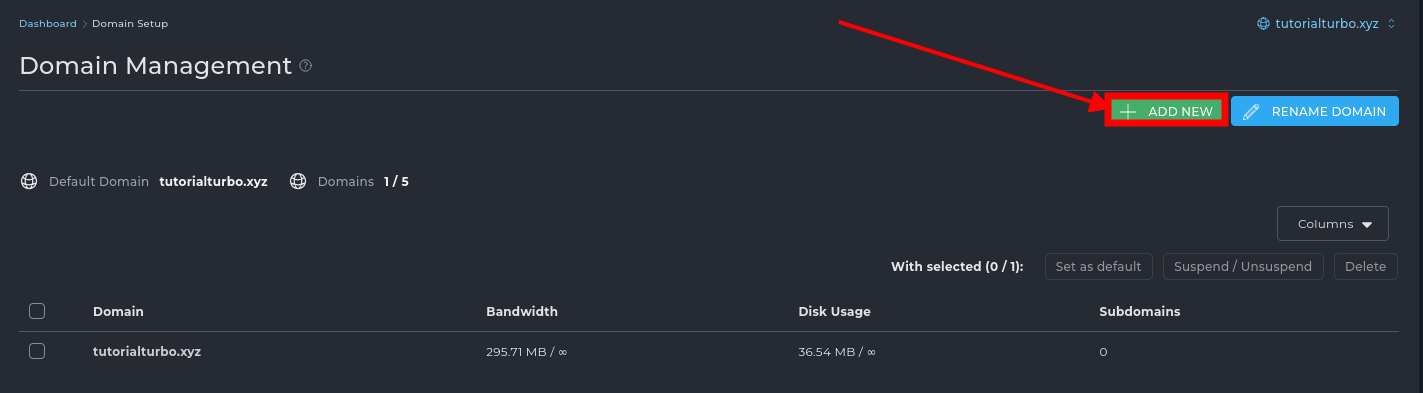
3: Enter the Domain
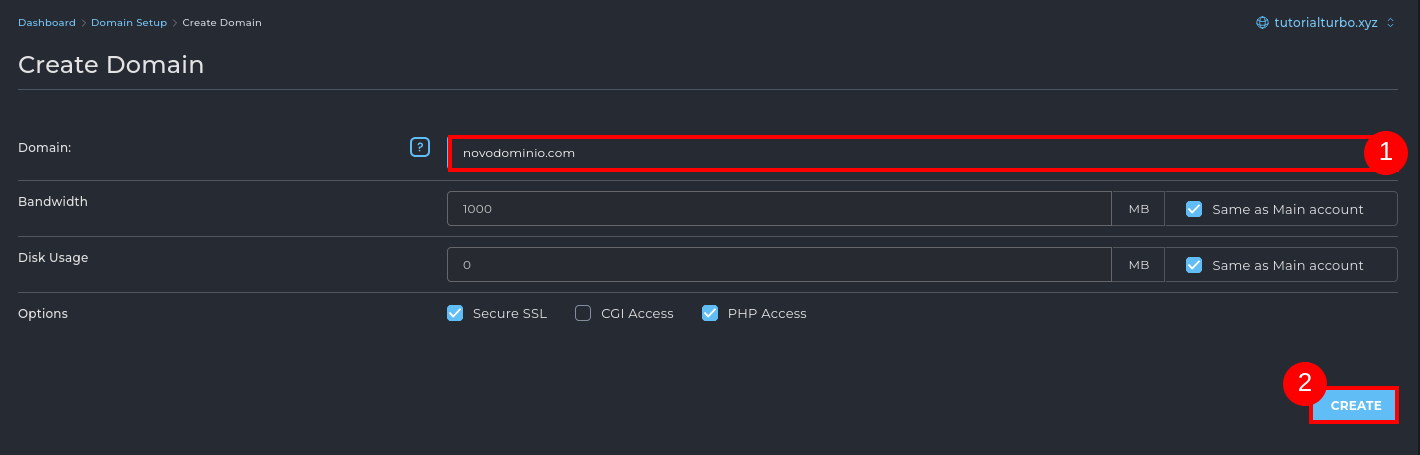
In the field indicated, enter the name of the new domain (e.g. meusite.com), without the prefix “http://” or “www”.
You can leave the default options enabled, such as:
Bandwidth and Disk Space.
Secure SSL, PHP Access, among others.
Once filled in, click on “Create” to finish.
4: Confirmation
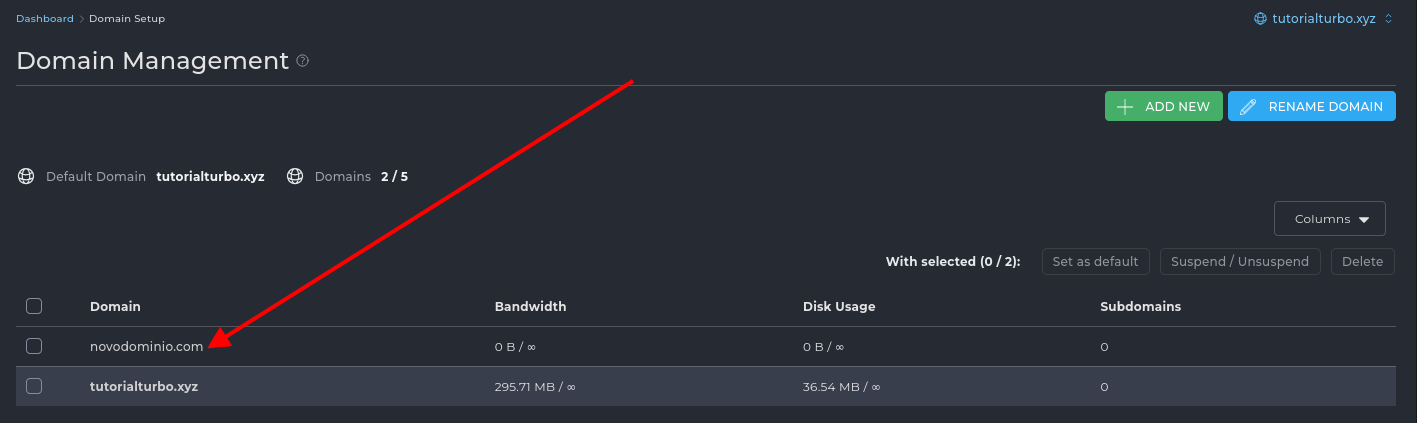
The domain will be successfully added and will appear in the account's list of domains.
You will see a confirmation message and can view the new domain on the main Domain Setup screen.
5: Individual Management
Now that the domain has been added, you can switch between domains to manage each one separately.
Simply select the domain you want in the top right-hand corner of the panel (if this option is available) or access it directly from the main menu.
From there, you'll be able to configure and publish the content of the new site, create e-mail accounts, manage files, databases and more.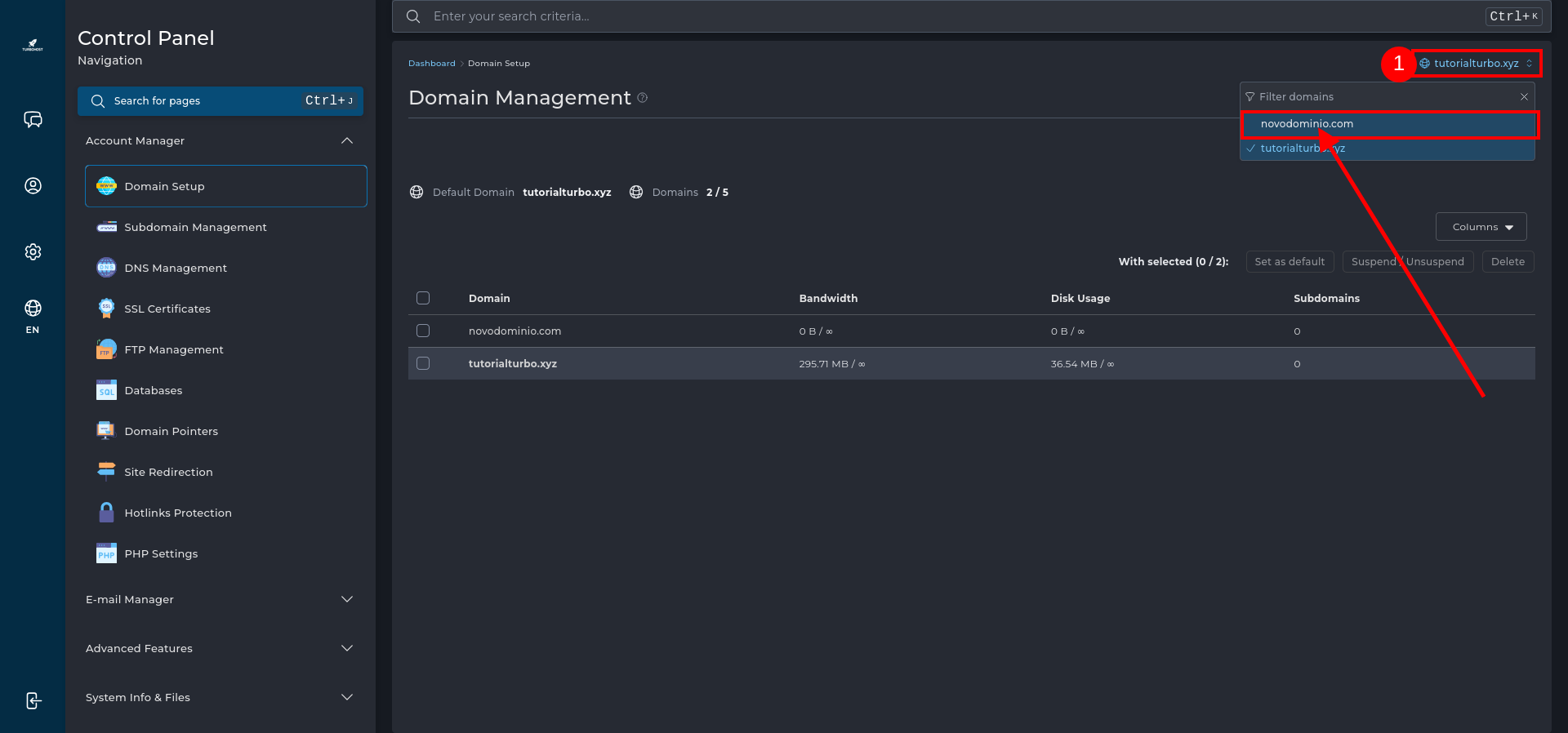

 Worldwide (English)
 Mozambique (Portuguese)