This guide explains how to configure an email account in Mozilla Thunderbird using the IMAP protocol. IMAP is recommended because it keeps your emails synchronized with the server across multiple devices.
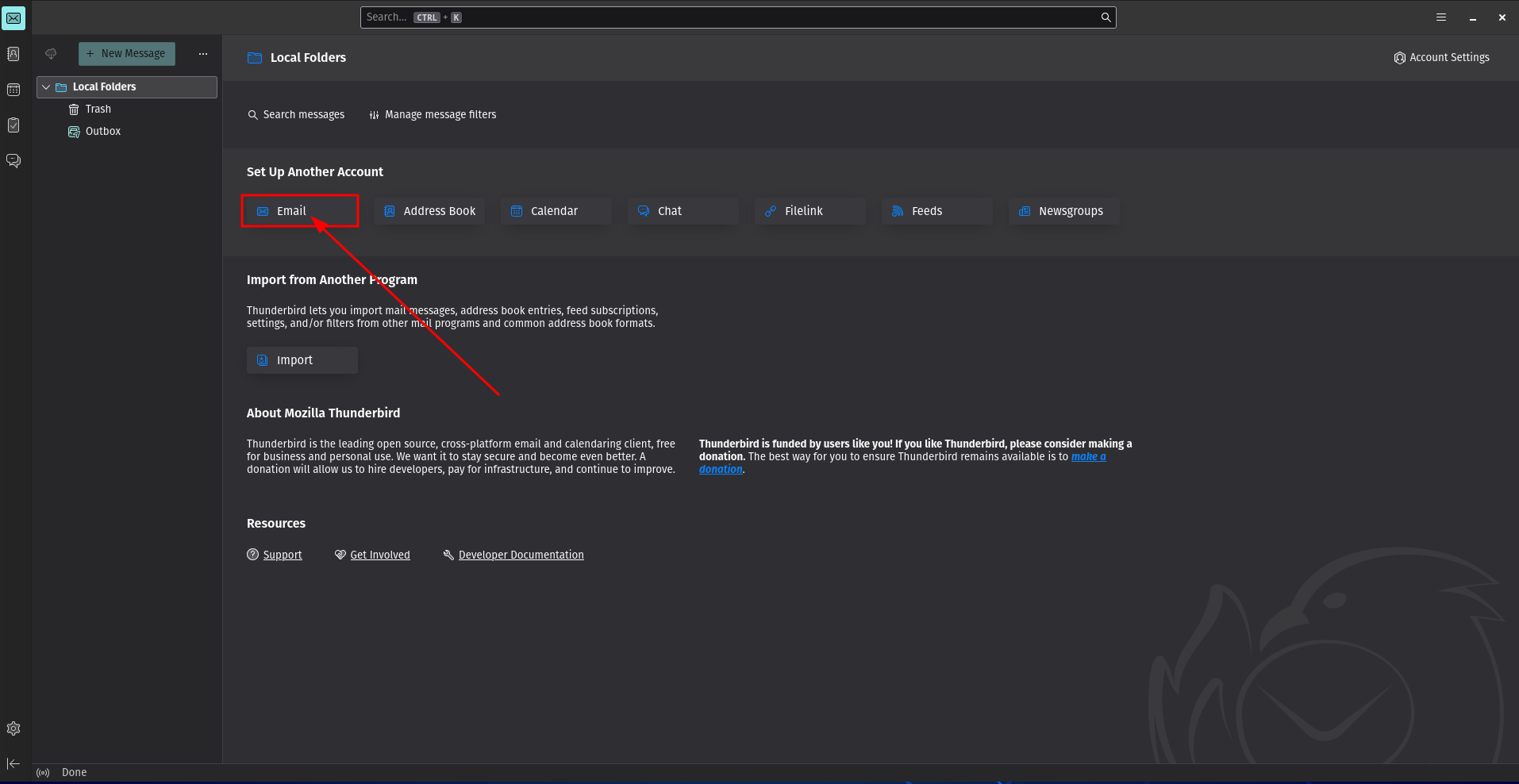
Open Mozilla Thunderbird.
On the main screen, under Set Up Another Account, click on Email to begin the email account setup.
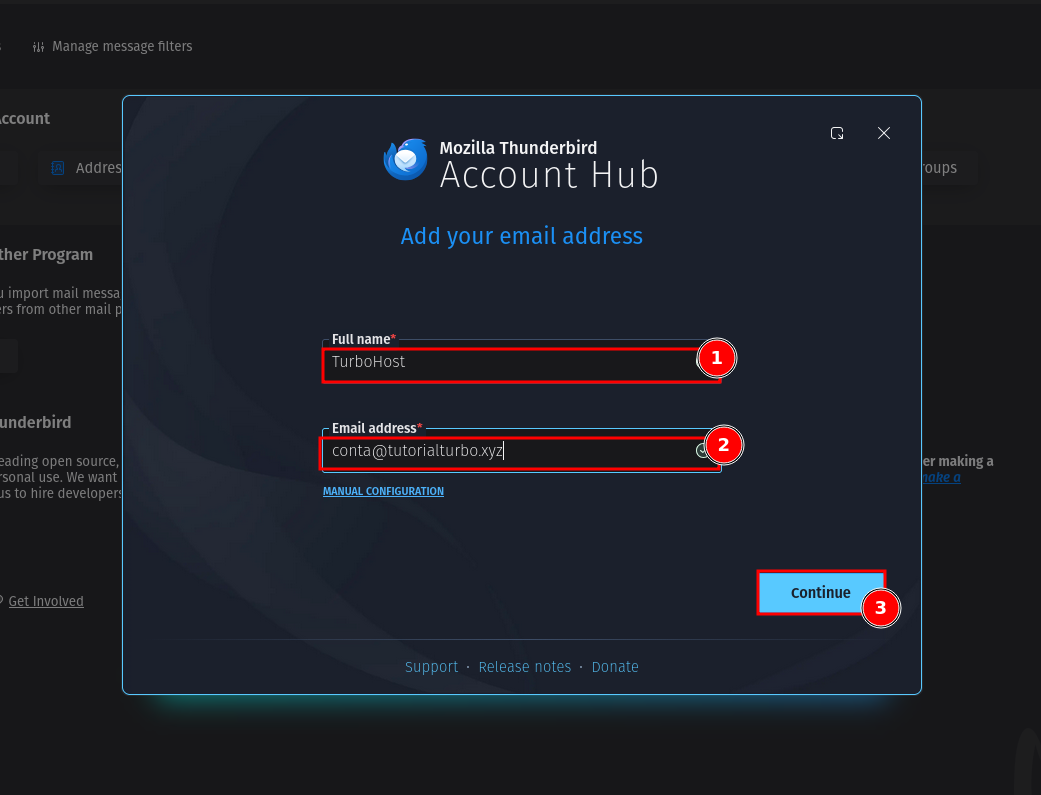
In the Account Hub window, fill in the required fields:
Full name: Enter the name that will appear as the sender of your emails.
Email address: Enter your full email address (for example: [email protected]).
Click Continue to proceed.
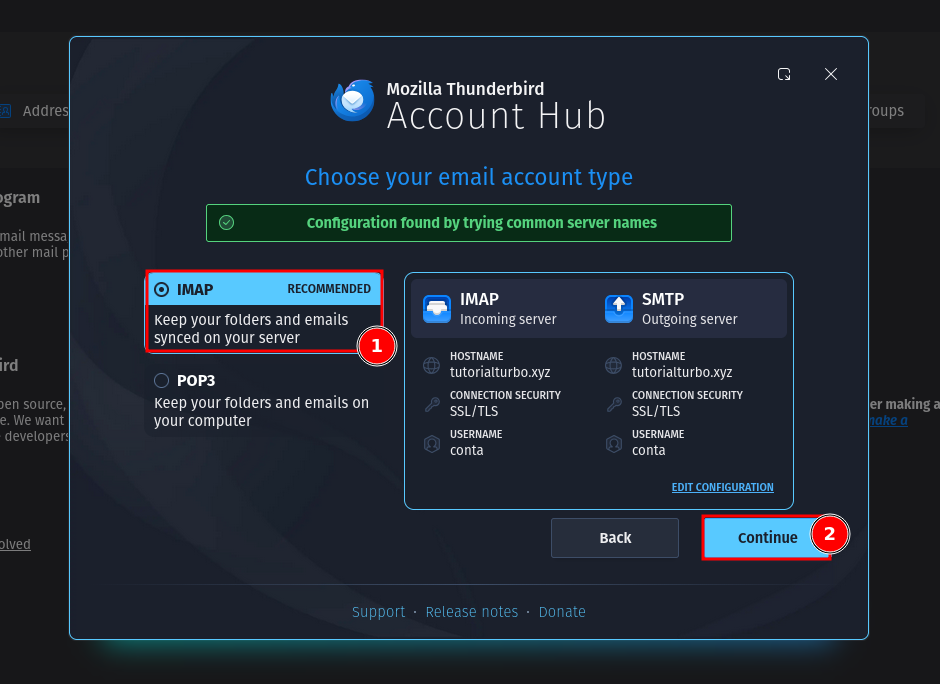
Thunderbird will automatically try to detect the correct server settings.
Select IMAP (Recommended) to keep your emails and folders synchronized with the server.
Click Continue to move forward.
ℹ️ IMAP is recommended because it allows access to the same mailbox from multiple devices.
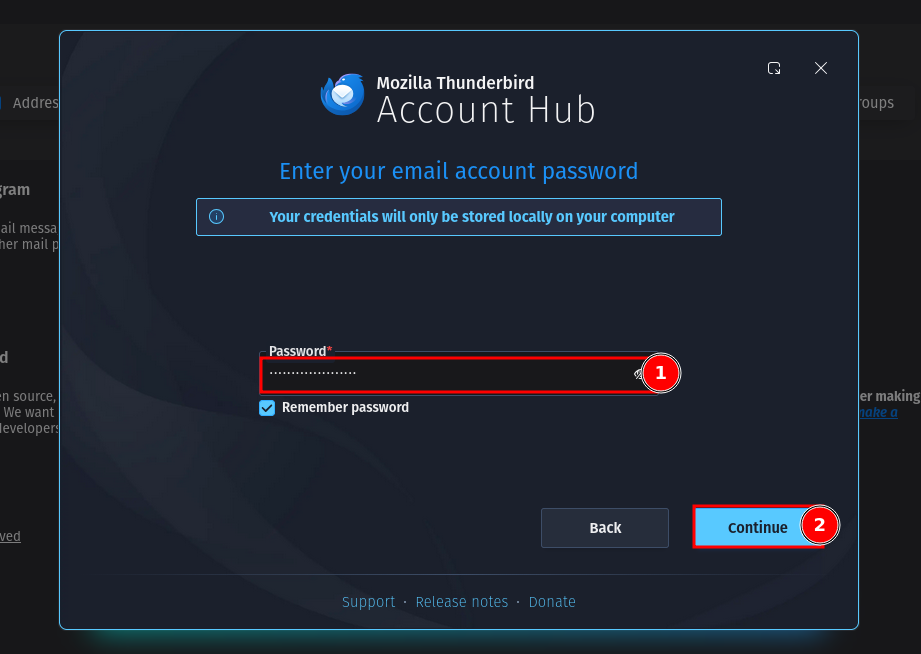
Enter the email account Password.
You may keep Remember password checked to avoid entering the password each time Thunderbird starts.
Click Continue to proceed.
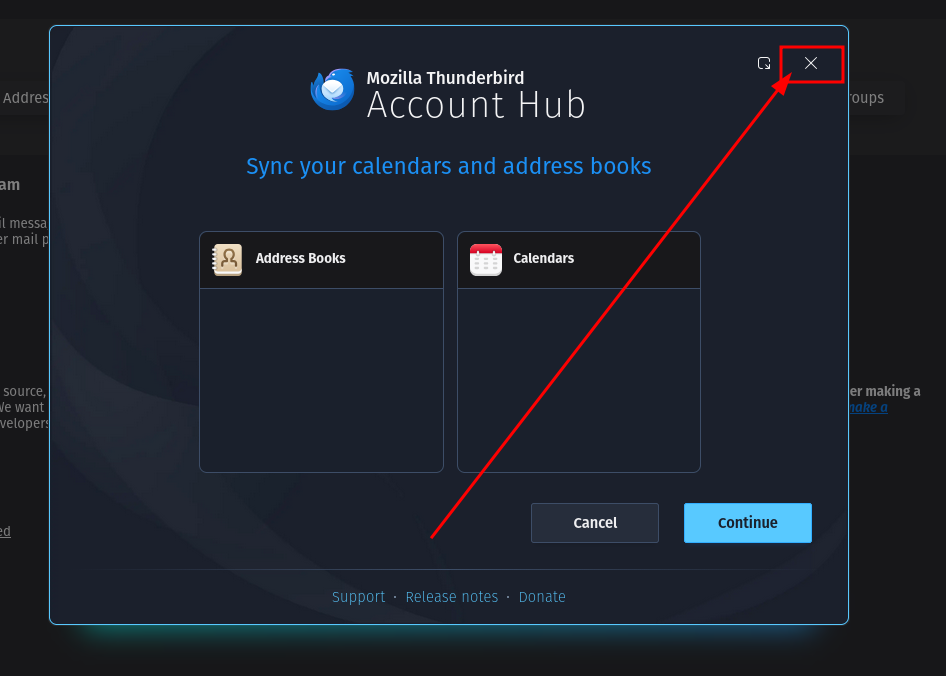
Thunderbird may offer to sync Address Books and Calendars.
If you only want to configure email, simply close the window (X) in the top-right corner.
This step is optional and does not affect email functionality.
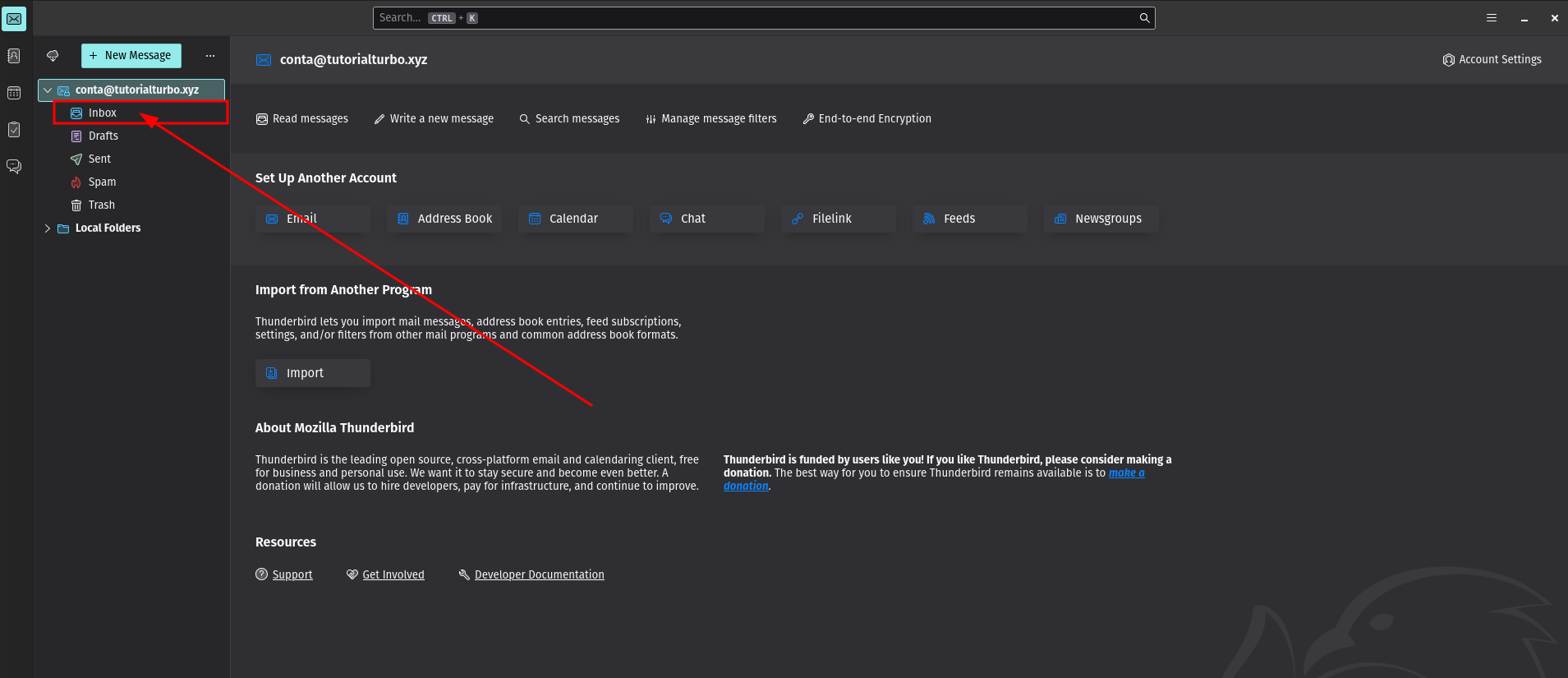
The email account is now configured successfully.
On the left panel, confirm that the account appears and that the Inbox folder is visible.
Thunderbird is now ready to send and receive emails.
Ensure your email password is correct before starting the setup.
If automatic detection fails, use the Manual Configuration option to enter server details provided by your hosting provider.
IMAP is the recommended protocol for business and multi-device use.

 Worldwide (English)
 Mozambique (Portuguese)