Follow the steps below to create a new database:
Step 1️⃣
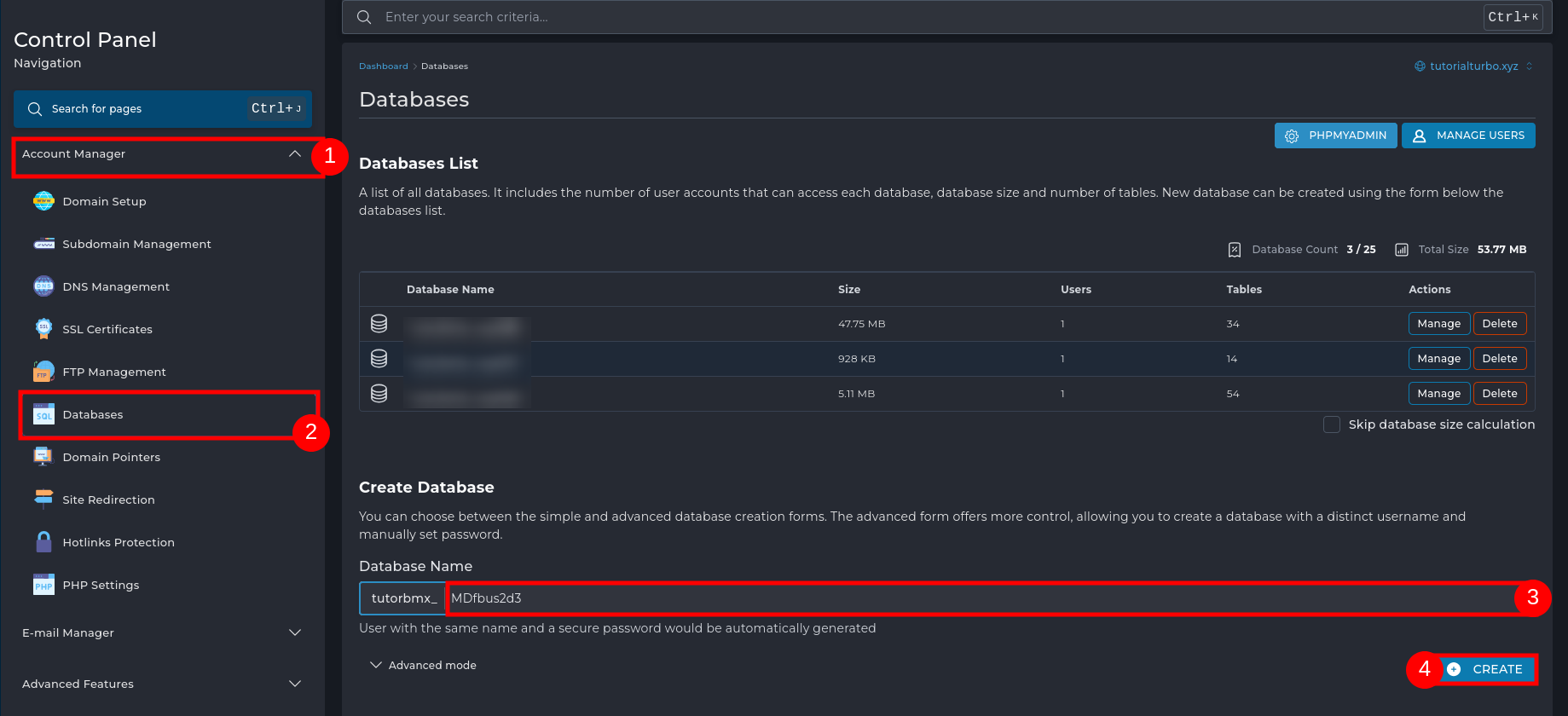
Access the “Account Manager” menu
In the left side panel, click on Account Manager to expand the options.
Select “Databases”
Then click on Databases to open the database management area.
Define the database name
In the Database Name field, enter the desired name for the database.
DirectAdmin will automatically add your user prefix (example: tutorbmx_).
Click “Create”
After filling in the name, click the Create button to create the database.
✅ After creating the database
A window will appear with the connection details, including:
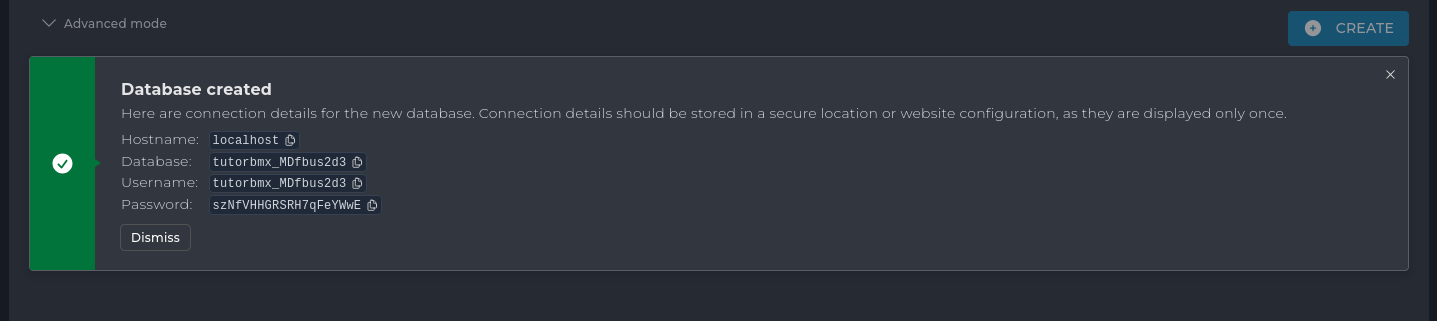
⚠️ Keep this information safe, as you will need it to configure your website or application (e.g., in WordPress, Laravel, etc.).
Translated with DeepL.com (free version)

 Worldwide (English)
 Mozambique (Portuguese)