An SSL certificate secures your website (HTTPS), protecting data and improving user trust. In DirectAdmin, you can enable a free SSL certificate using Let’s Encrypt.
Step 1 — Access the SSL area
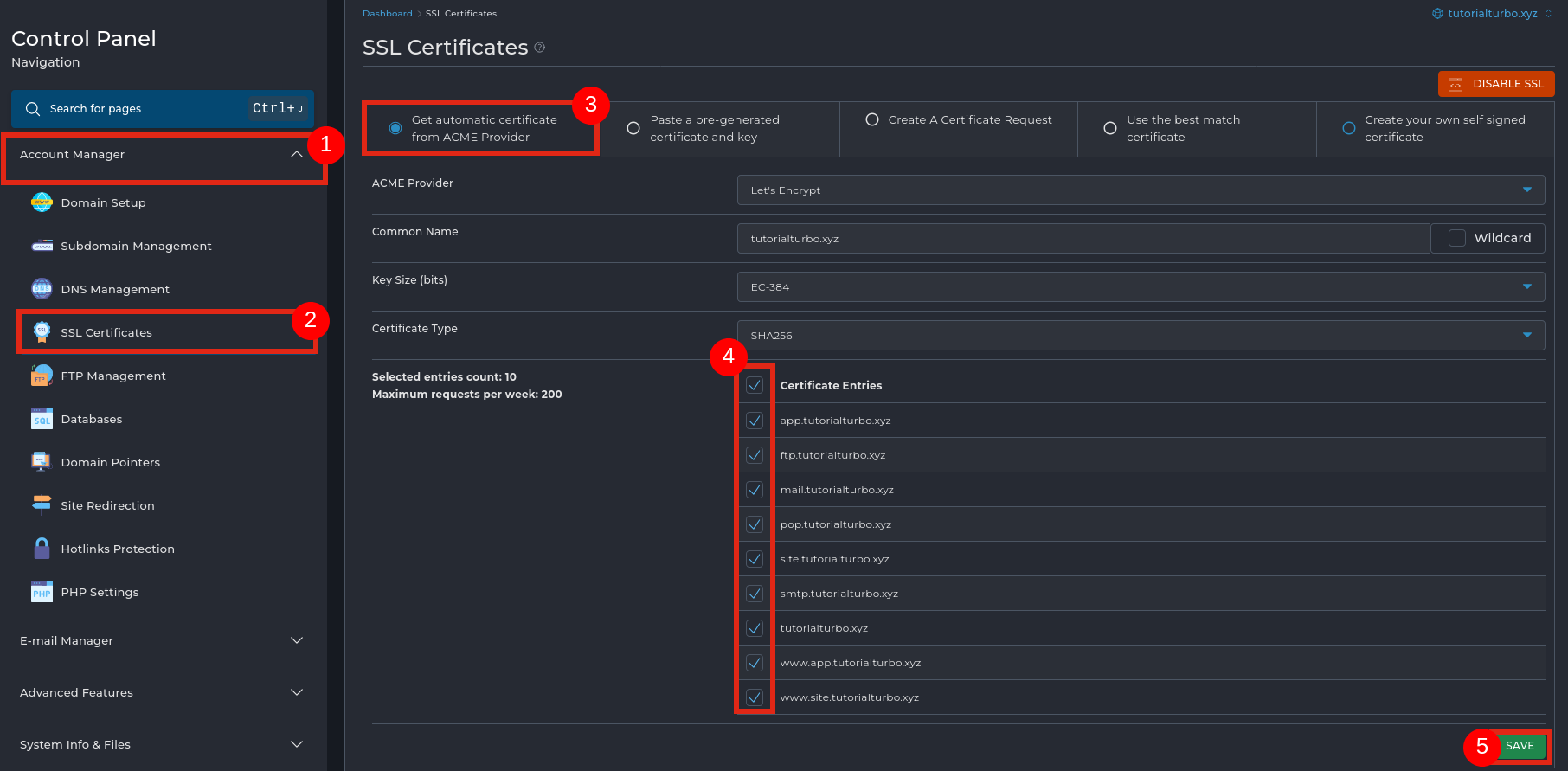
In the left menu, click Account Manager.
Select SSL Certificates.
Select Get automatic certificate from ACME Provider.
This option generates a free SSL certificate automatically.
ACME Provider: keep Let’s Encrypt.
Common Name: make sure the main domain is correct.
Key Size / Certificate Type: keep the default recommended values.
Under Certificate Entries, select:
Main domain (e.g. yourdomain.com)
www.yourdomain.com
Required subdomains (mail, ftp, site, etc.)
Tip: select only the subdomains you actually use.
Click SAVE to generate and install the SSL certificate.
Within a few seconds, SSL will be active and your site will load via HTTPS.
Let’s Encrypt certificates are valid for 90 days, with automatic renewal.
The domain must be correctly pointed to the server.

 Worldwide (English)
 Mozambique (Portuguese)