The File Manager in DirectAdmin allows you to upload, remove, and extract website files directly from the control panel, without using FTP. This is useful for uploading HTML sites, ZIP packages, or replacing default files.
Step 1 — Open File Manager
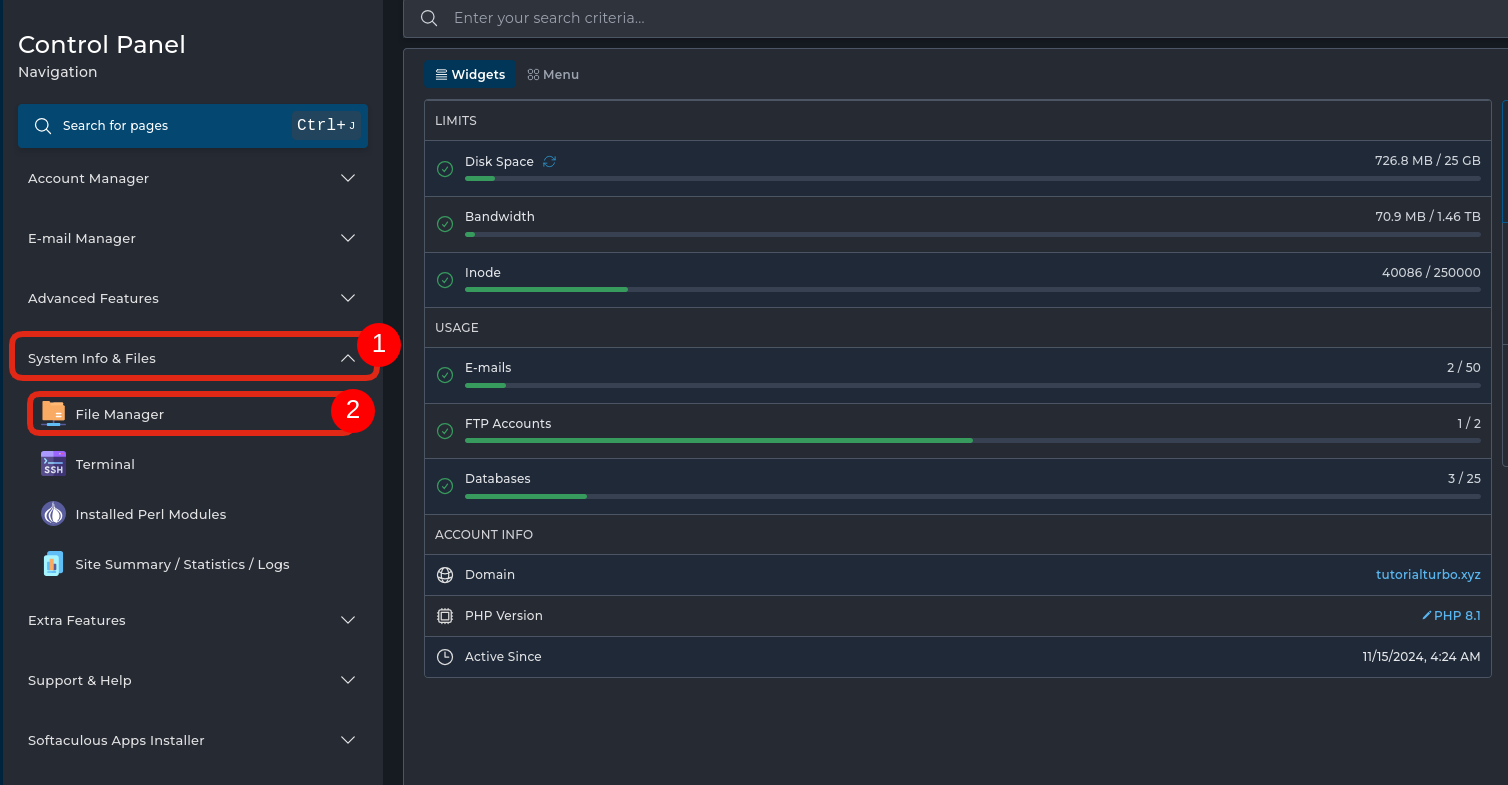
In the left menu, expand System Info & Files
Click File Manager
This will open the file management interface.
Step 2 — Access the public_html Directory
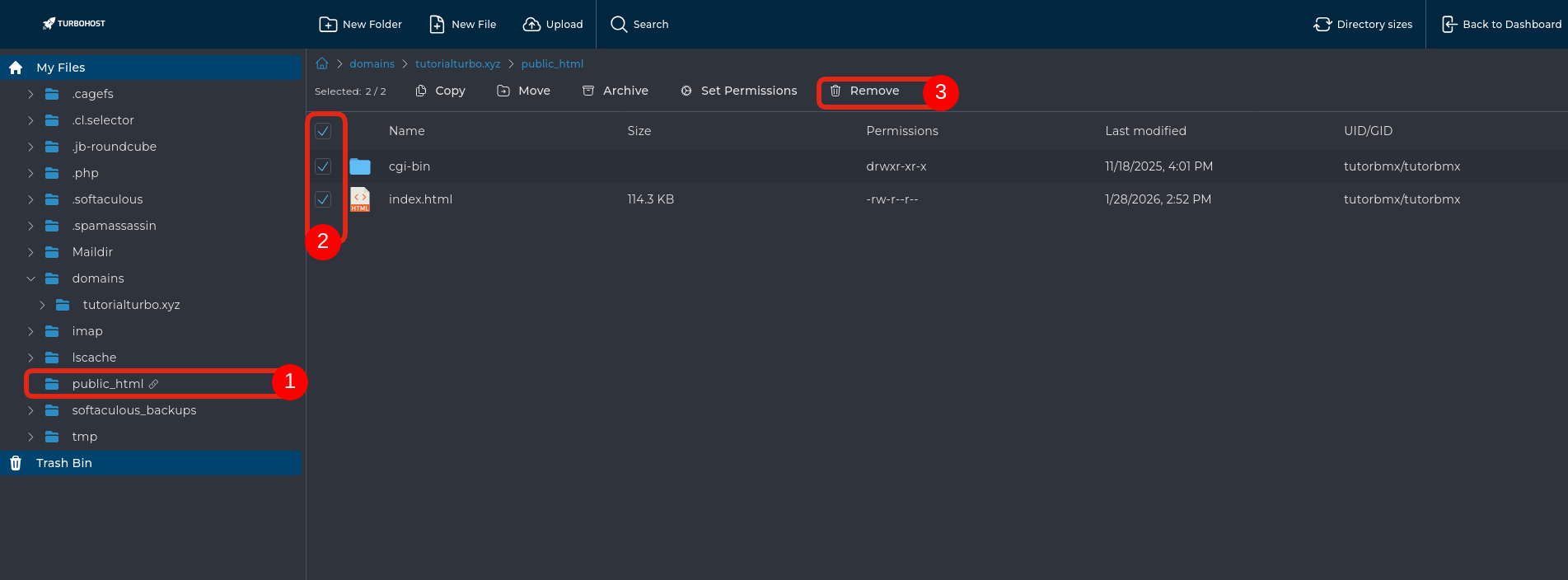
In the File Manager panel, go to the left-hand side menu.
Click on public_html to open the main website directory.
In the file list (main panel), check the selection boxes next to the items you want to delete.
Example: cgi-bin and index.html.
At the top of the file list, click the Remove button.
Confirm the removal when prompted.
Done. The selected files/folders will be removed from the public_html directory.
Important note: Before deleting any files, make sure they are no longer needed. If the website is live, always create a backup first.
Step 3 — Upload
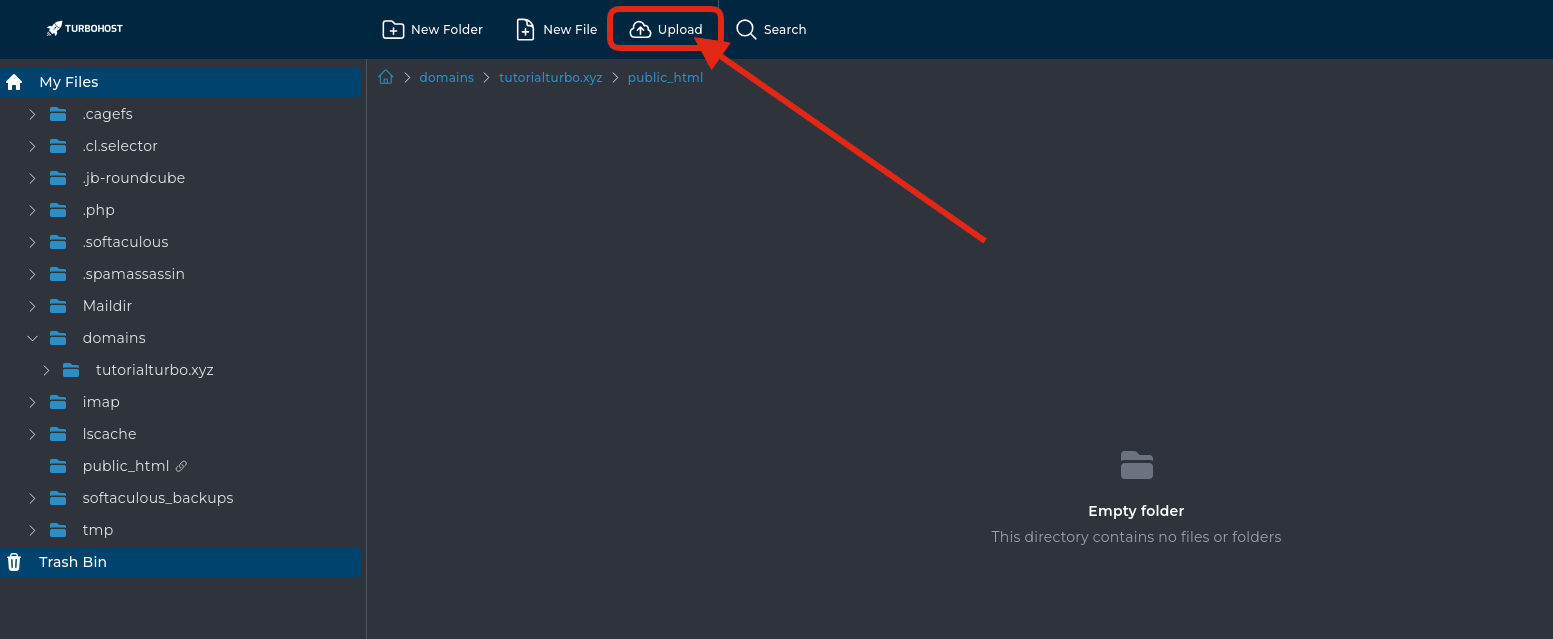
Inside public_html, click Upload
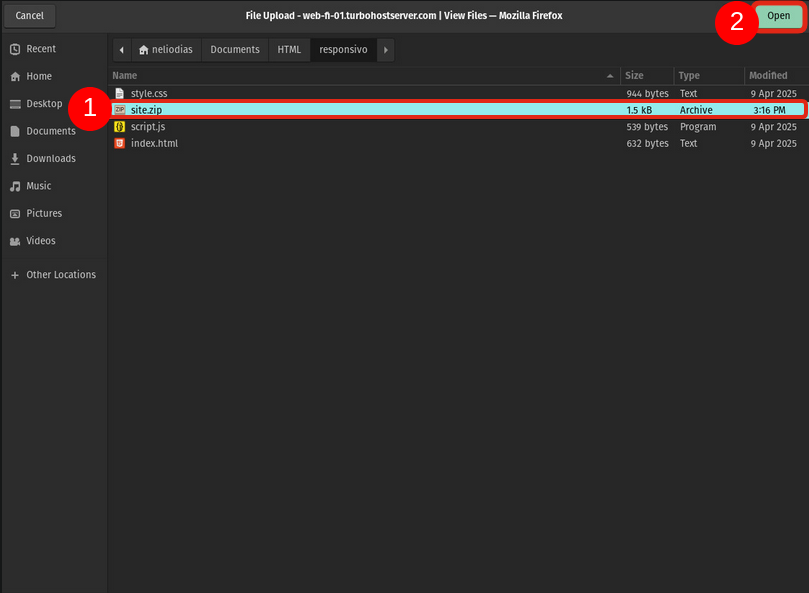
In the File Upload window, browse your computer folders.
-> Click on the ZIP file you want to upload (for example, site.zip).
The selected file will be highlighted.
After selecting the file, click the Open button in the top-right corner.
The upload will start automatically in the File Manager.
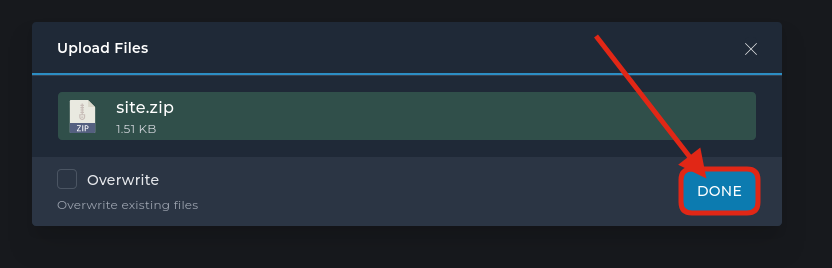
Step 6 — Extract ZIP Files
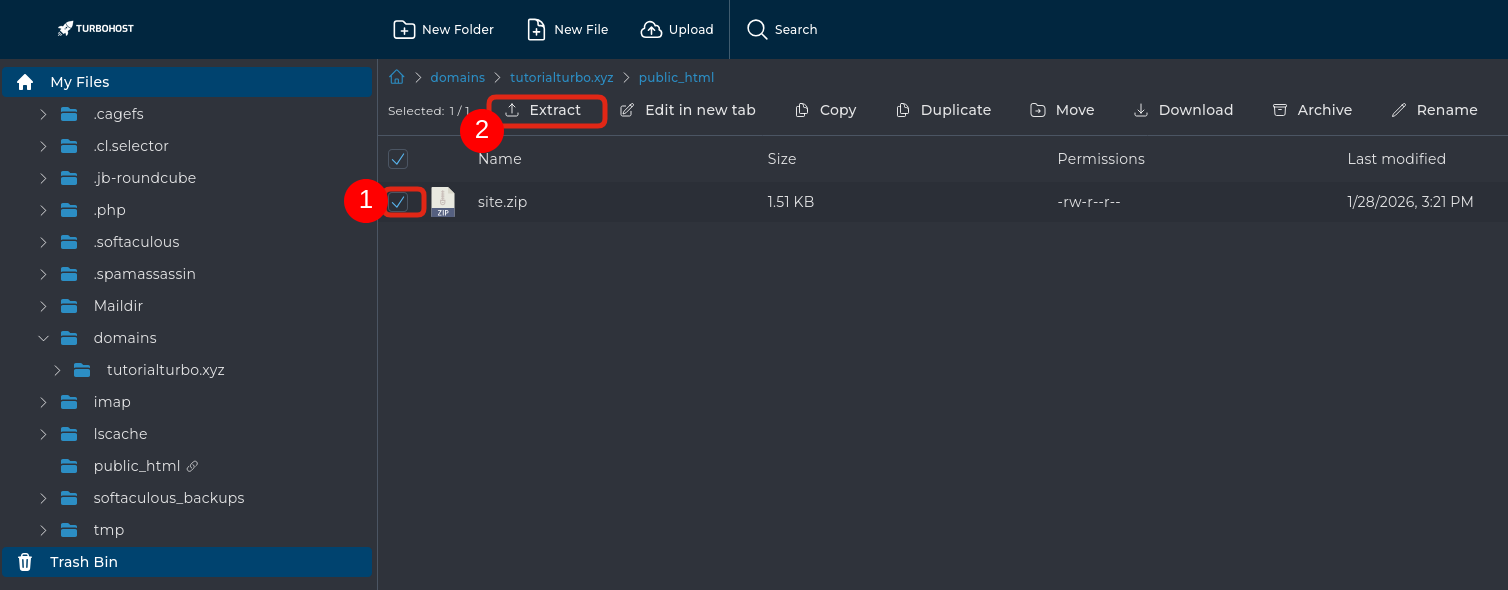
Step 7 — Complete extraction
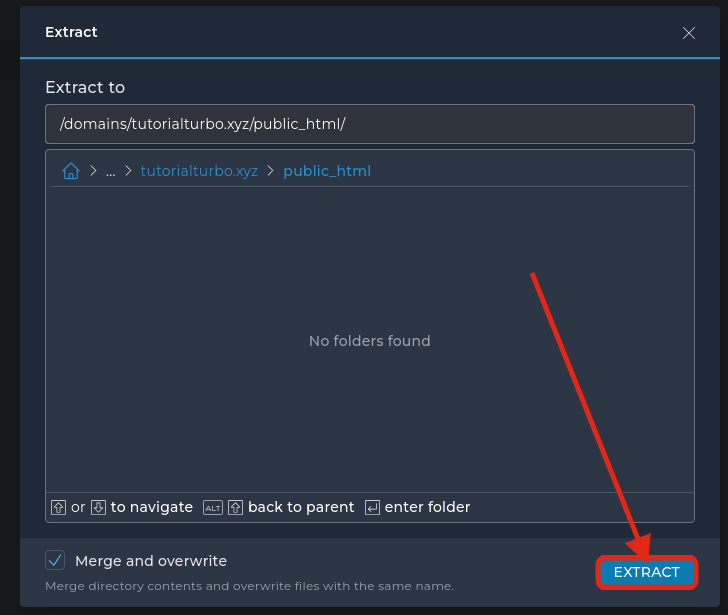
Step 8 — Verify Uploaded Files
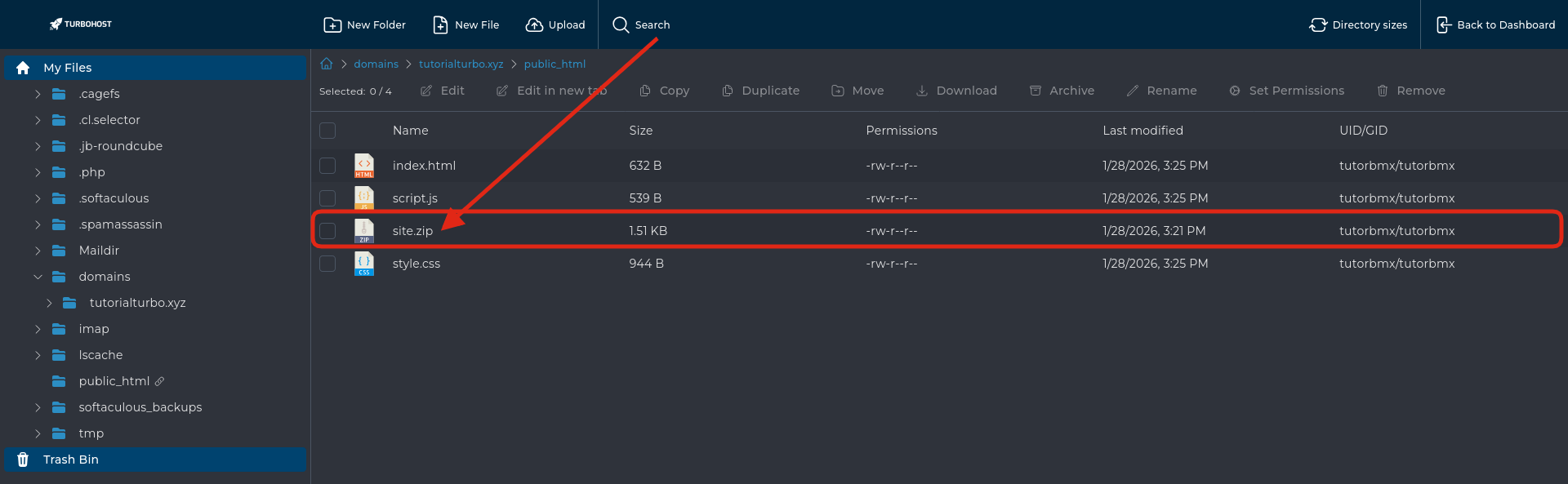
After extraction, you should see files such as:
Once these files are present, your website should be accessible via your domain and remove unused ZIP files after extraction
⚠️ Important Notes
Always upload website files inside public_html
Ensure there is only one main index.html or index.php

 Worldwide (English)
 Mozambique (Portuguese)