DNS record management allows you to point your domain to email servers, websites and other services. Follow the steps below to add, change or remove DNS records via the Turbohost Customer Panel.
1. Access the Customer Panel
Go to: https://my.turbo.host/sign-in
Enter your credentials (e-mail and password) to log in.
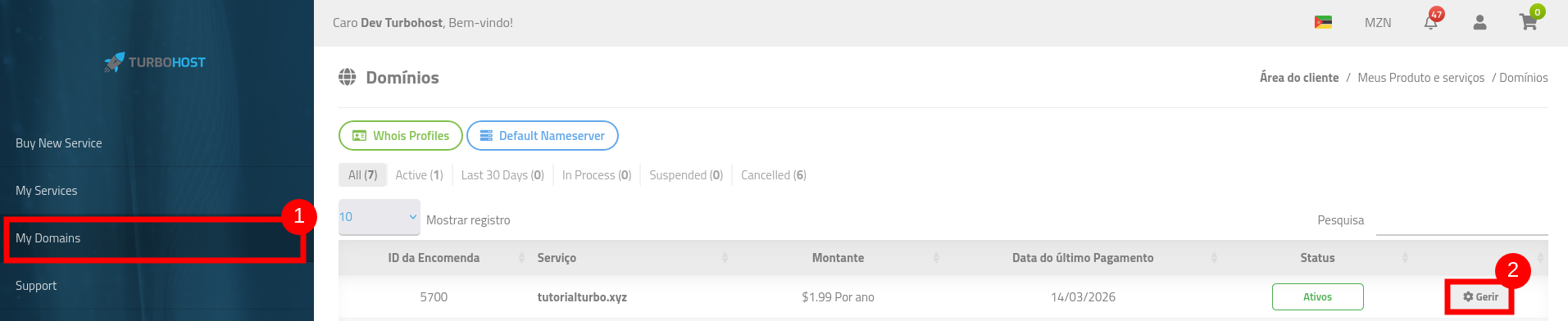
On the main panel, click on “My Domains”.
Locate the domain you want to set up and click on “Manage”.
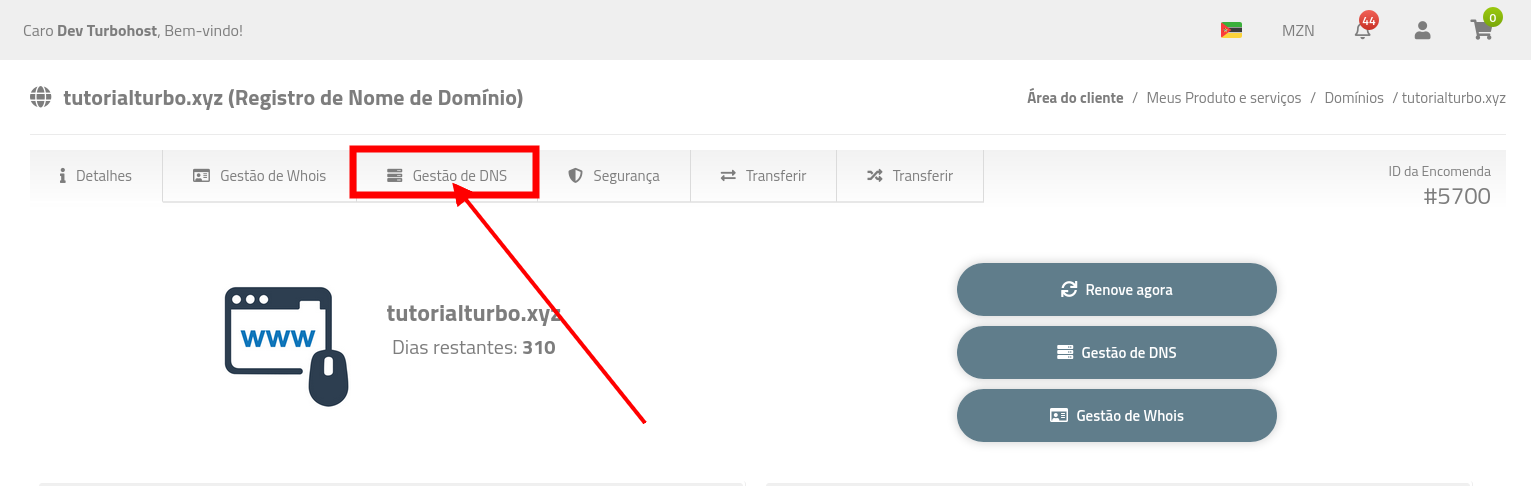
In the management area of the selected domain, click on the “DNS Management” option.
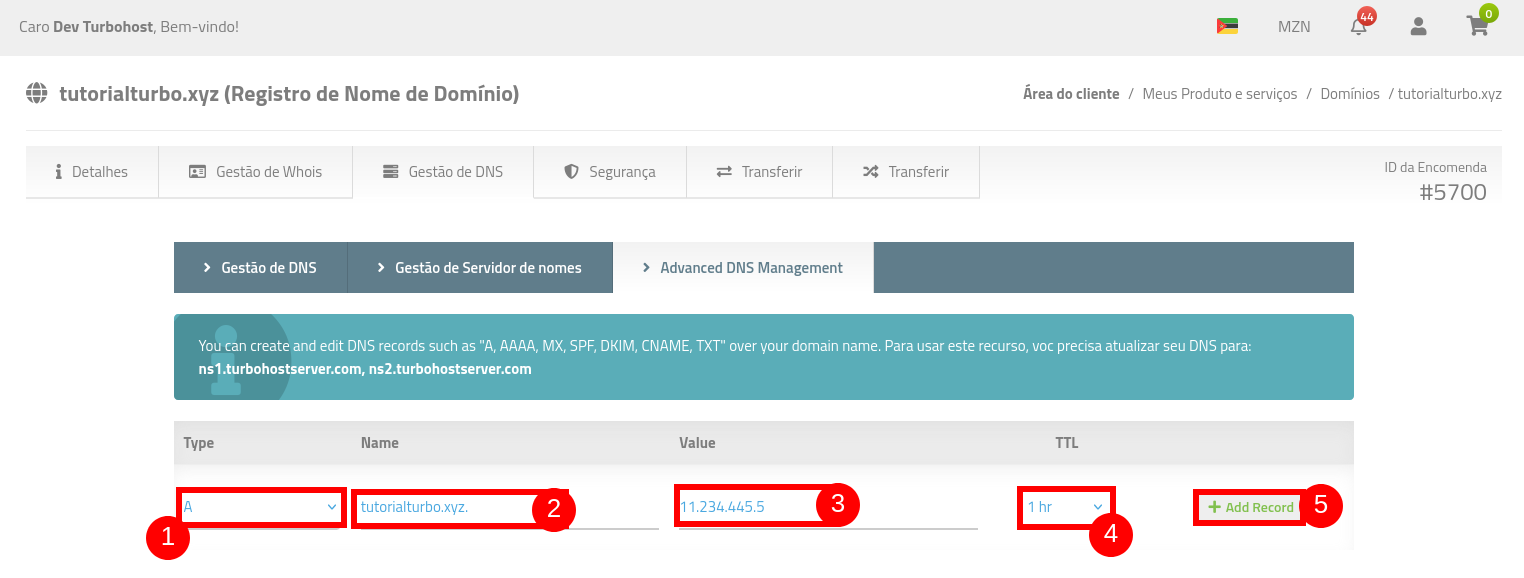
Click on “Advanced DNS Management”.
Use the form available to add records as required (A, CNAME, MX, TXT, among others).
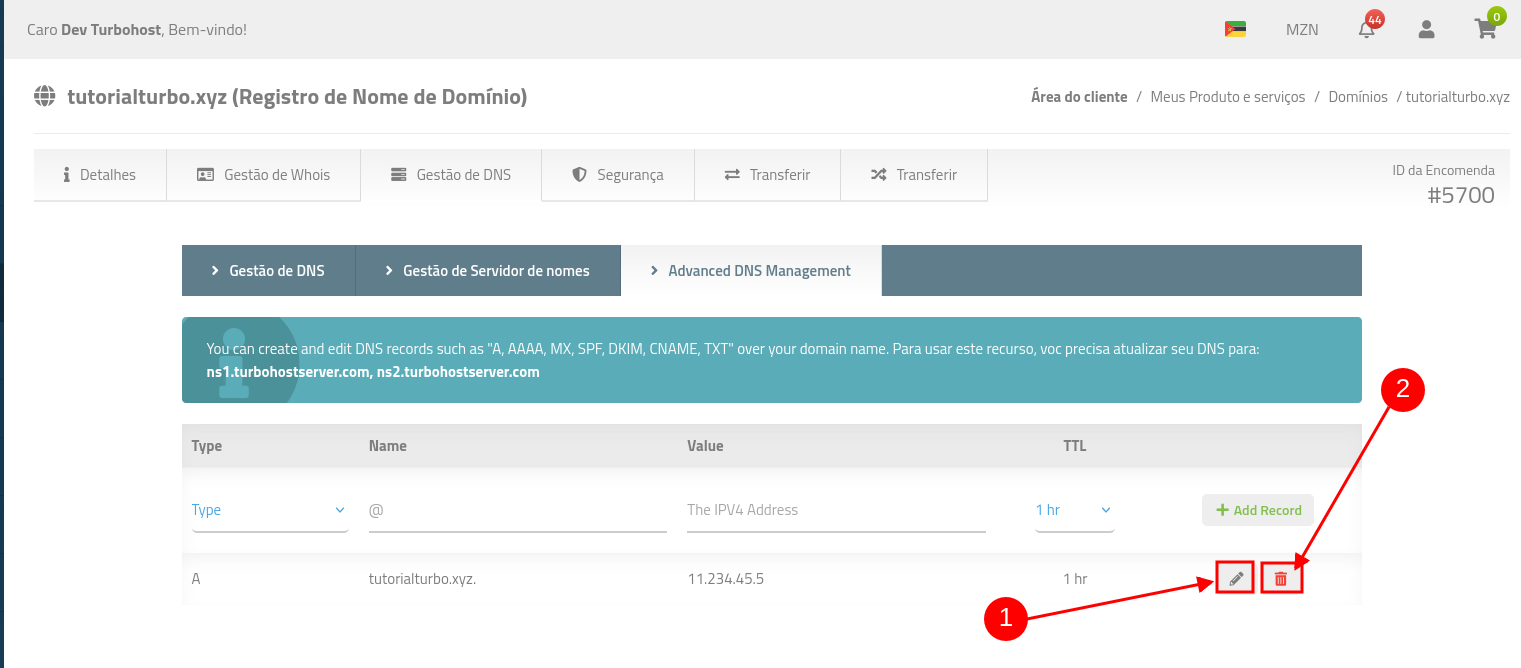
To edit or remove existing DNS records, use the corresponding buttons next to each line, as shown in the interface.
After making the desired changes, be sure to save the modifications.

 Worldwide (English)
 Mozambique (Portuguese)